
Adobe Premiere Pro Keyboard Shortcuts: You’re deep in an edit, the deadline’s staring at you, and every cut means another trip to the mouse. That’s the moment Adobe Premiere Pro keyboard shortcuts stop being a nice-to-have and start being the difference between keeping pace and losing your rhythm. The best shortcut resources don’t just list commands, they change how you work, whether you’re learning the basics, standardizing a team setup, or building a hands-on edit bay with dedicated hardware. And the good news is, you don’t need to guess which tools are worth your time. The strongest options are official when accuracy matters, tactile when muscle memory matters, and interactive when you need speed without friction.
Table of Contents
- 1. Adobe HelpX – Default Premiere Pro Keyboard Shortcuts (official)
- 2. Adobe HelpX – Customize, View, and Manage Keyboard Shortcuts
- 3. Logickeyboard ASTRA2 Backlit Keyboard for Adobe Premiere Pro
- 4. Editors Keys – Adobe Premiere Keyboard (AB10 Backlit, Wired or Wireless)
- 5. KB Covers – Adobe Premiere Pro Keyboard Covers (Mac keyboards and MacBooks)
- 6. Elgato Stream Deck – Premiere Pro Basics Profiles (Elgato Marketplace)
- 7. KeyCombiner – Shortcut Trainer and Instant Lookup
- Premiere Pro Keyboard Shortcuts, 7-Item Comparison
- From Knowing to Doing Build Your Muscle Memory
1. Adobe HelpX – Default Premiere Pro Keyboard Shortcuts (official)
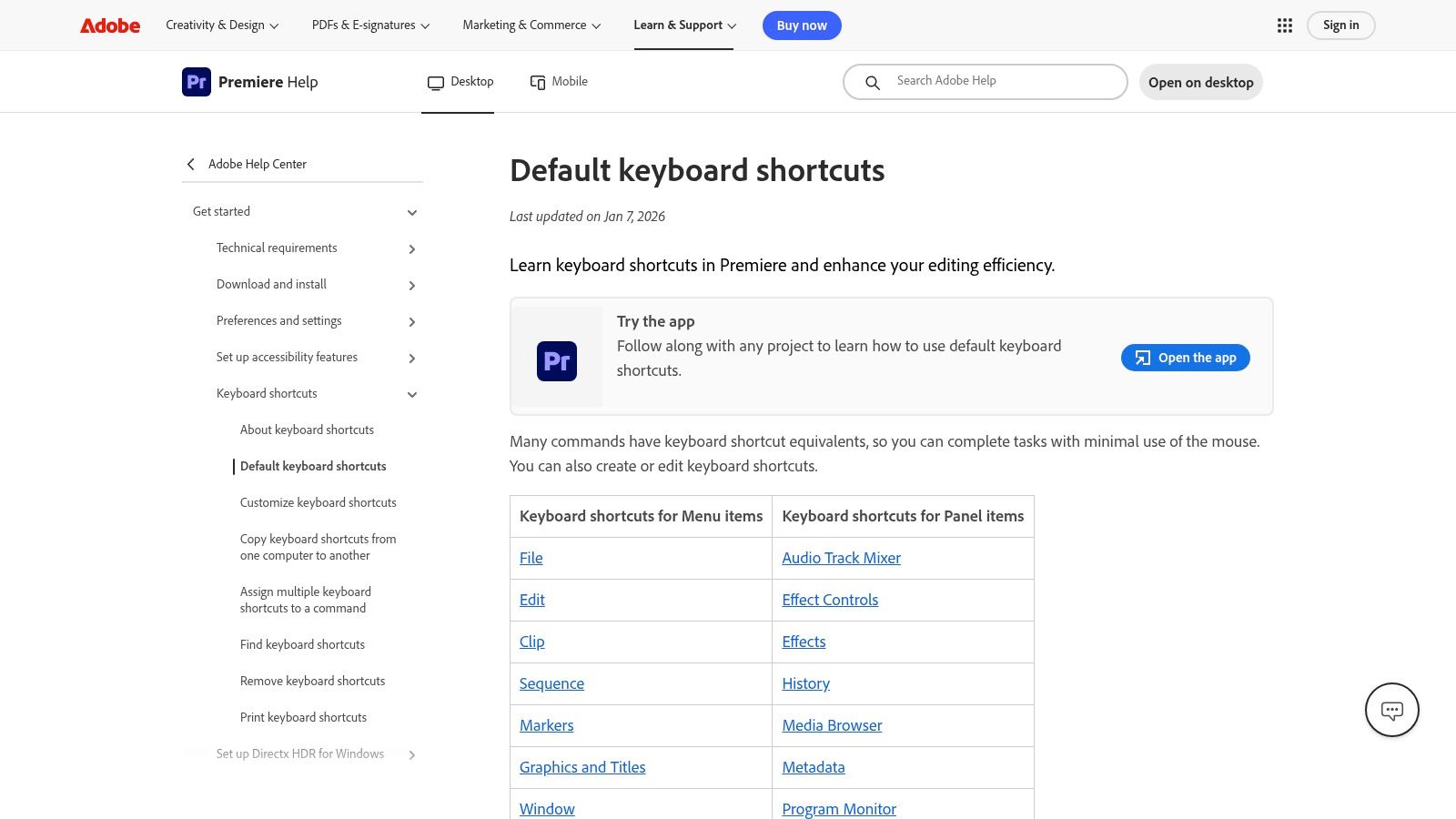
When you need the cleanest possible answer, start with Adobe’s own shortcut reference for Adobe Premiere Pro keyboard shortcuts. The value isn’t just that it’s official, it’s that it maps the software the way Adobe intends editors to move through it, from New Project and New Sequence to Save, Export Media, and the Keyboard Shortcuts dialog itself. Adobe’s reference shows that the shortcut system spans the full workflow, not just the timeline, and that matters when you’re trying to work faster without breaking the software’s logic. See Adobe’s official shortcut map in the Premiere Pro keyboard shortcuts reference, and if you want a broader business case for why video workflow speed matters, the internal read on why video marketing is so powerful for business is a useful companion.
Adobe’s default map is also the easiest place to verify the shortcuts that matter most in day-to-day editing. You’ll see common actions like Ctrl + S / Cmd + S for Save, Ctrl + M / Cmd + M for Export Media, and Ctrl + Alt + K / Cmd + Opt + K for Keyboard Shortcuts, which tells you right away how Adobe expects editors to stay inside the app instead of hunting through menus. That cross-platform symmetry is useful in mixed environments, because the same actions carry over on Windows and macOS with parallel key combos.
Practical rule: if a shortcut affects project safety, sequence creation, or export, check Adobe first. Third-party guides are fine for speed, but the official reference is the one I’d trust when a team needs consistency.
The drawback is simple. This is a reference, not a trainer, so it won’t teach your fingers what to do on its own. Still, for anyone building a shortcut system from scratch, it’s the foundation everything else should point back to.
2. Adobe HelpX – Customize, View, and Manage Keyboard Shortcuts
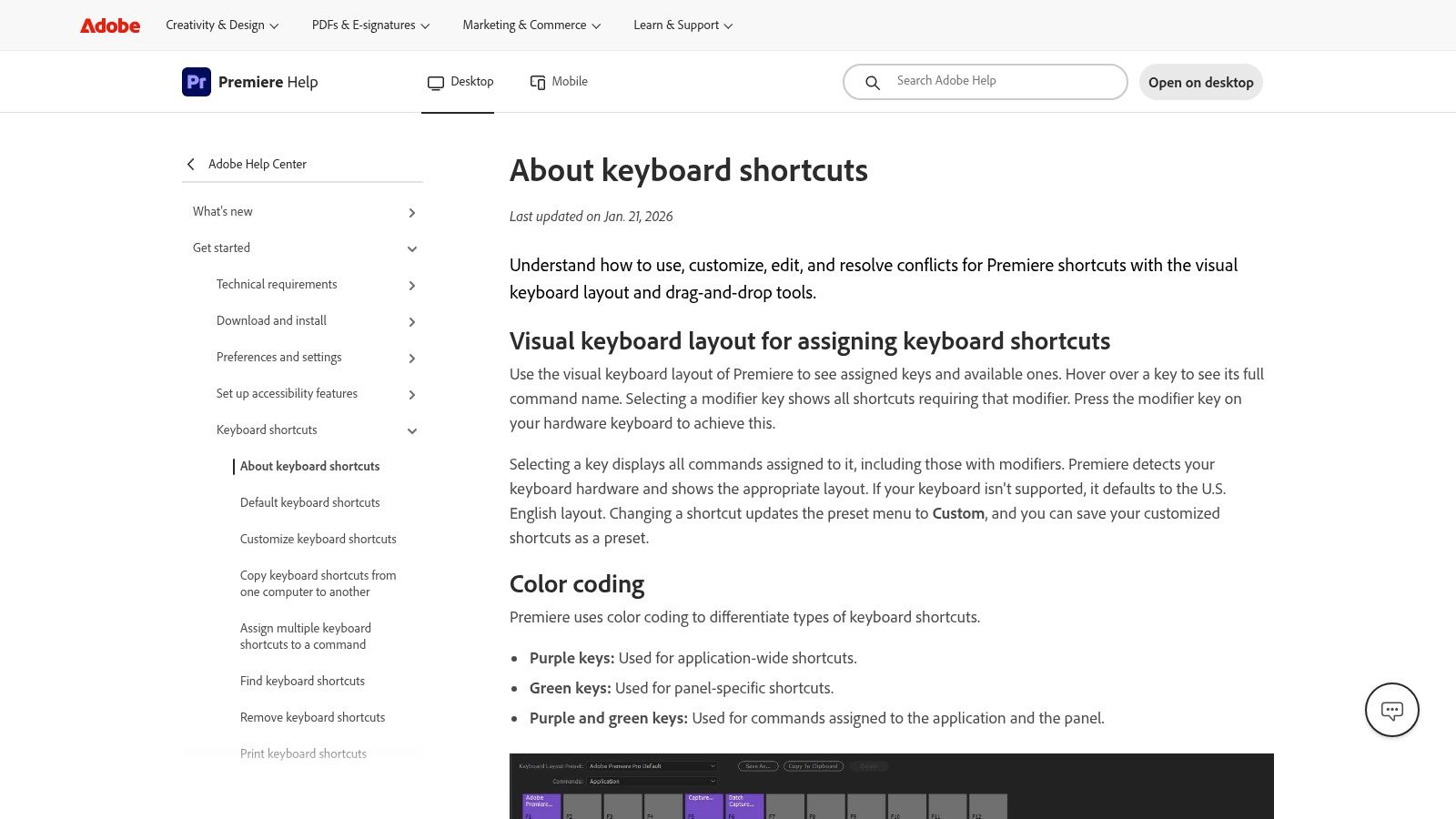
Once the defaults make sense, the next move is customization. Adobe’s own shortcut management guide is the best resource for editors who want the keyboard to fit the cut, not the other way around. The official workflow covers the Keyboard Shortcuts dialog, the visual keyboard layout, searching commands, handling conflicts, and importing or exporting shortcut sets as .kys files, which makes it particularly useful for solo editors and post teams alike. The guide sits alongside Adobe’s broader shortcut ecosystem, including the customizable shortcut behavior documented in Adobe’s Premiere Elements shortcut instructions, where users can assign new keys and save a named key set in a similar Adobe workflow.
That matters because real editing rooms rarely run one universal layout forever. Assist editors, finisher editors, and social cut teams all tend to drift toward different habits, and a smart shortcut setup keeps those habits from stepping on each other. If one editor lives inside the source monitor and another spends most of the day trimming in the timeline, the official customization tools let each person keep their pace without rebuilding the whole project around one person’s preferences. The internal overview on starting a video podcast channel in 2024 pairs well here if you’re thinking about repeatable production workflows.
Adobe’s own interface is also the least ambiguous place to resolve conflicts. Instead of guessing whether a command is already assigned, you can search for it, inspect the clash, and decide whether the new binding is worth the trade-off. That’s the core value of the tool. It doesn’t just let you remap shortcuts, it forces you to think like an editor building a system.
A few things stand out in practice:
- Import and export matter: they make shortcut sets portable across machines and teams.
- Conflict checking matters: it keeps one new binding from inadvertently breaking another.
- Visual layout matters: you can scan a command map faster than you can memorize a help article.
This isn’t the best place to learn your first five shortcuts. It is the place to make your workflow yours once you already know what you reach for every day.
3. Logickeyboard ASTRA2 Backlit Keyboard for Adobe Premiere Pro
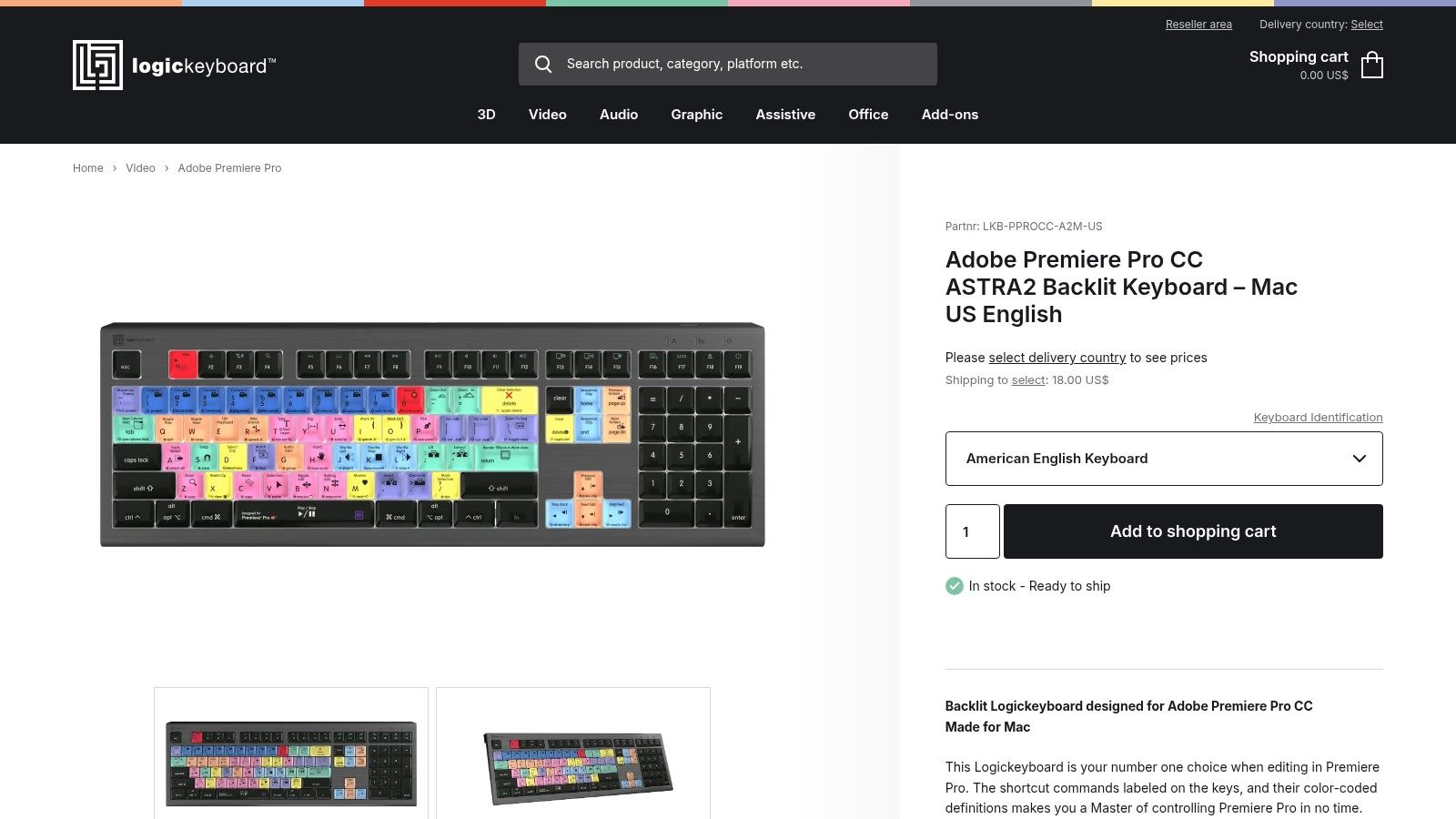
Some editors don’t want another PDF. They want the shortcut in front of them, every time they sit down. That’s where a dedicated keyboard like the Logickeyboard ASTRA2 earns its keep, because the printed legends turn recurring actions into something you can read at a glance instead of memorizing under pressure. The product page for the Mac version lays out a 5-level dimmable backlight, scissor-switch keys, and a built-in USB 3.0 hub in the Astra2 series, which tells you it’s built for a proper edit station, not casual typing.
The main advantage is onboarding. New editors can sit down and start recognizing the commands that are essential in Premiere Pro without stopping to search through menus or web pages. That visual reinforcement also helps teams that need a consistent edit bay setup, because everyone sees the same legends and learns the same pathway through the software. The internal piece on video marketing for small business fits naturally here if you’re building out a production workflow for client work.
There’s a trade-off, though, and it’s important. The printed legends reflect default shortcuts, so a heavily customized setup can drift away from what’s on the keys. That’s fine if your team stays close to Adobe’s standard map, but it becomes less useful if every editor remaps the timeline differently. In other words, this keyboard supports standardization better than personalization.
The best physical shortcut tools make the software feel visible. If your team is still learning the command map, a backlit shortcut keyboard can shorten that gap faster than a generic board ever will.
For post houses, that’s the point. You’re not buying a keyboard to type emails. You’re buying a repeatable interface for a specific piece of software, and Logickeyboard leans hard into that idea.
4. Editors Keys – Adobe Premiere Keyboard (AB10 Backlit, Wired or Wireless)
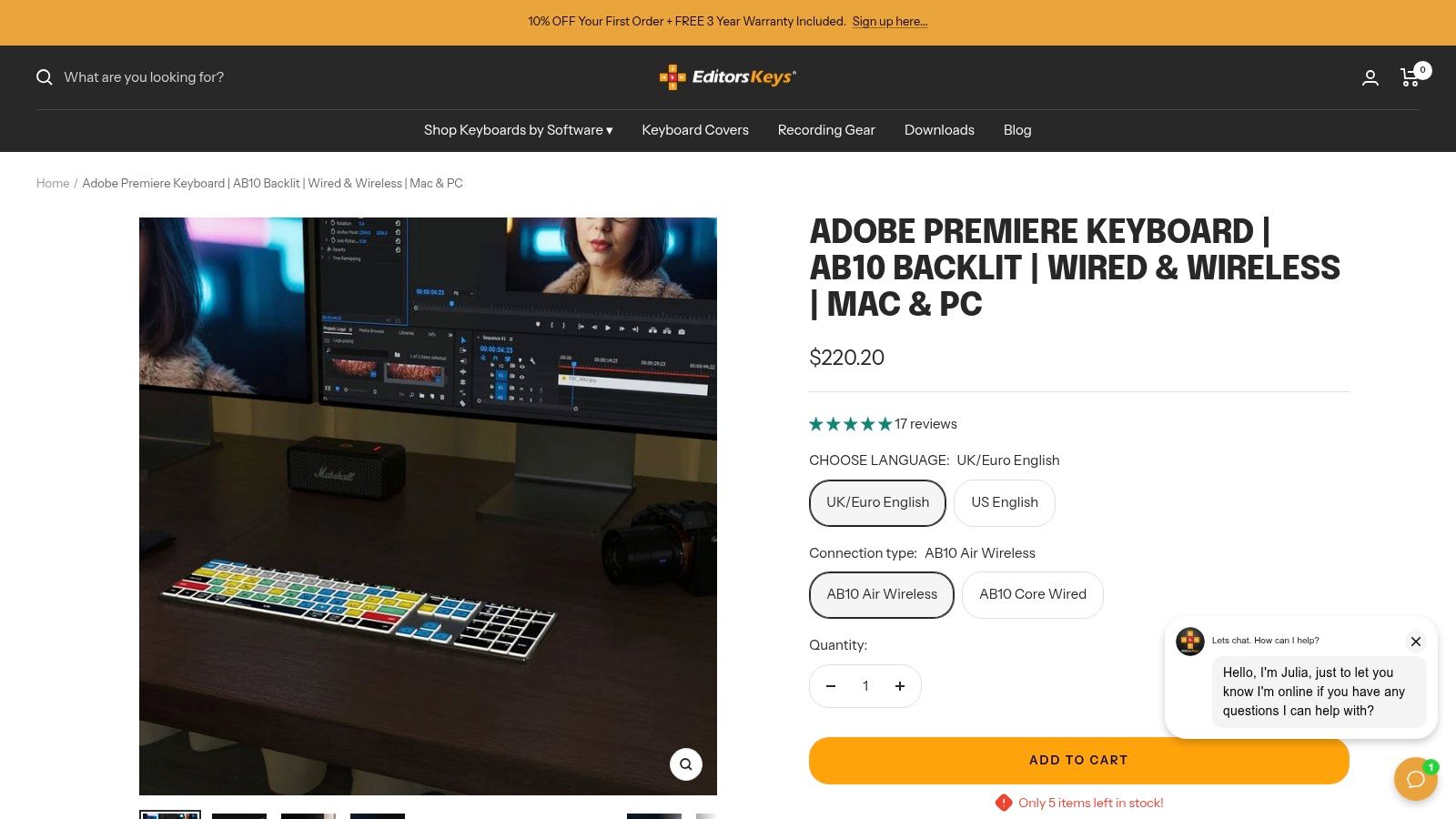
Editors Keys tackles the learning curve from the hardware side. Instead of making editors memorize every command before the board becomes useful, it puts 100+ color-coded Premiere shortcuts on the keys so the keyboard itself works as a live reference. That matters in real edit bays, because the fastest editors do not just know the shortcuts, they can see them instantly while cutting. The line also gives you a practical choice, since the AB10 Air is wireless and multi-device, while the AB10 Core stays wired through USB-C. That split helps teams choose between mobility and a fixed workstation setup without changing the way the shortcuts are presented.
The wireless model will appeal to editors who move between desks or work on more than one machine. A board that travels easily is one less thing to reconfigure, and that keeps the focus on the cut instead of the setup. The adjustable backlight also earns its place in dark suites, where a shortcut board needs to stay readable without adding glare or distraction. For teams building out client-facing workflows, the internal guide on video production for social media pairs well with this kind of purchase because it keeps the hardware decision tied to output, not just preference.
Value is reinforcement. The legends are there every time the editor reaches for a trim, playback, or timeline command, so the keyboard helps turn occasional use into habit. That is useful for editors who already understand Premiere Pro but still pause before certain key combinations. The trade-off is the same one you get with most printed shortcut boards, if a studio remaps Premiere heavily, the legends can drift from the actual workflow and lose some of their usefulness.
A few practical takeaways:
- AB10 Air suits editors who want fewer cables and more flexibility.
- AB10 Core suits fixed edit stations that need a straightforward wired setup.
- Color coding helps newer editors separate tools, playback, markers, and timeline functions faster than plain keys do.
Editors Keys works because it respects different working styles. Some rooms need portability, some need a single board that stays under the hands all day, and this product line covers both without asking the team to give up shortcut visibility.
5. KB Covers – Adobe Premiere Pro Keyboard Covers (Mac keyboards and MacBooks)
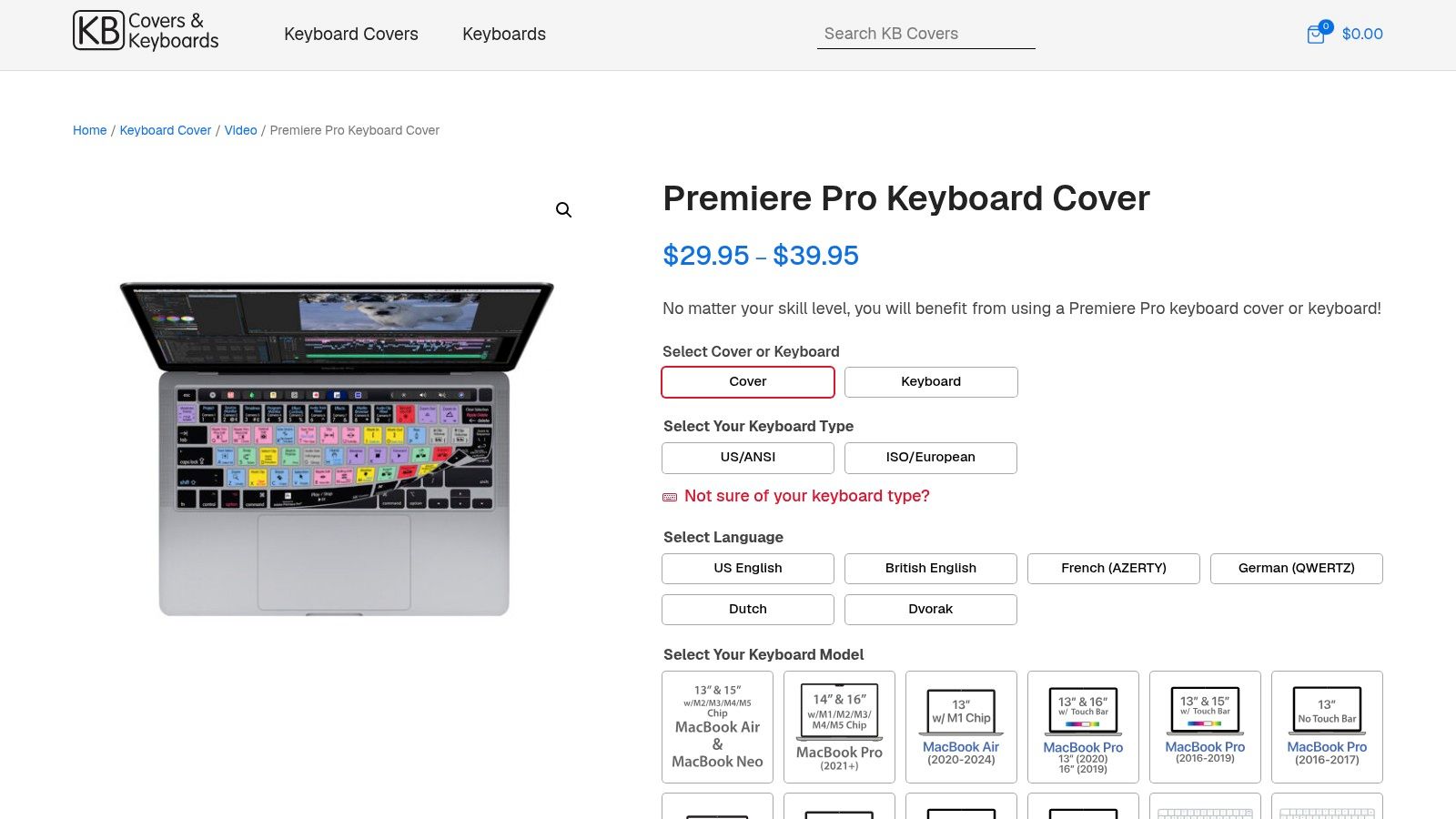
Not every editor wants to replace the keyboard they already like. KB Covers is the lower-friction option, and that’s its real strength. The silicone cover sits on top of an existing Apple keyboard or MacBook and prints Premiere shortcut references directly on the surface, so you get visual guidance without changing the hardware you already trust. The product line is model-specific, which is a good thing here, because fit matters more than novelty when you’re typing all day.
The appeal is straightforward. It’s cheaper than a full shortcut keyboard, easier to swap out, and it preserves the feel of your Mac keyboard. For editors who are already comfortable with Apple hardware but still need on-key guidance, that makes a lot of sense. The color coding helps separate timeline tools, playback, and markers, which is exactly the kind of visual cue that keeps a fast cut moving. The internal article on video production for social media complements this nicely if your editing work leans toward high-volume content output.
The downside is equally clear. KB Covers is Apple-focused, so Windows users are out of luck, and the fit has to match the exact keyboard model. If you’re ordering for a shared environment, that detail matters. A cover that feels fine on one MacBook size can become annoying on another, and annoying hardware is the fastest route to ignoring a shortcut aid entirely.
If the keyboard already feels right in your hands, a cover is often the smarter buy than a new board. It gives you the shortcut legend without making you relearn the hardware.
That’s why this option works so well for solo Mac editors, freelancers, and small teams that want a low-risk way to add shortcut visibility. It doesn’t try to be everything. It just keeps the commands in front of you.
6. Elgato Stream Deck – Premiere Pro Basics Profiles (Elgato Marketplace)
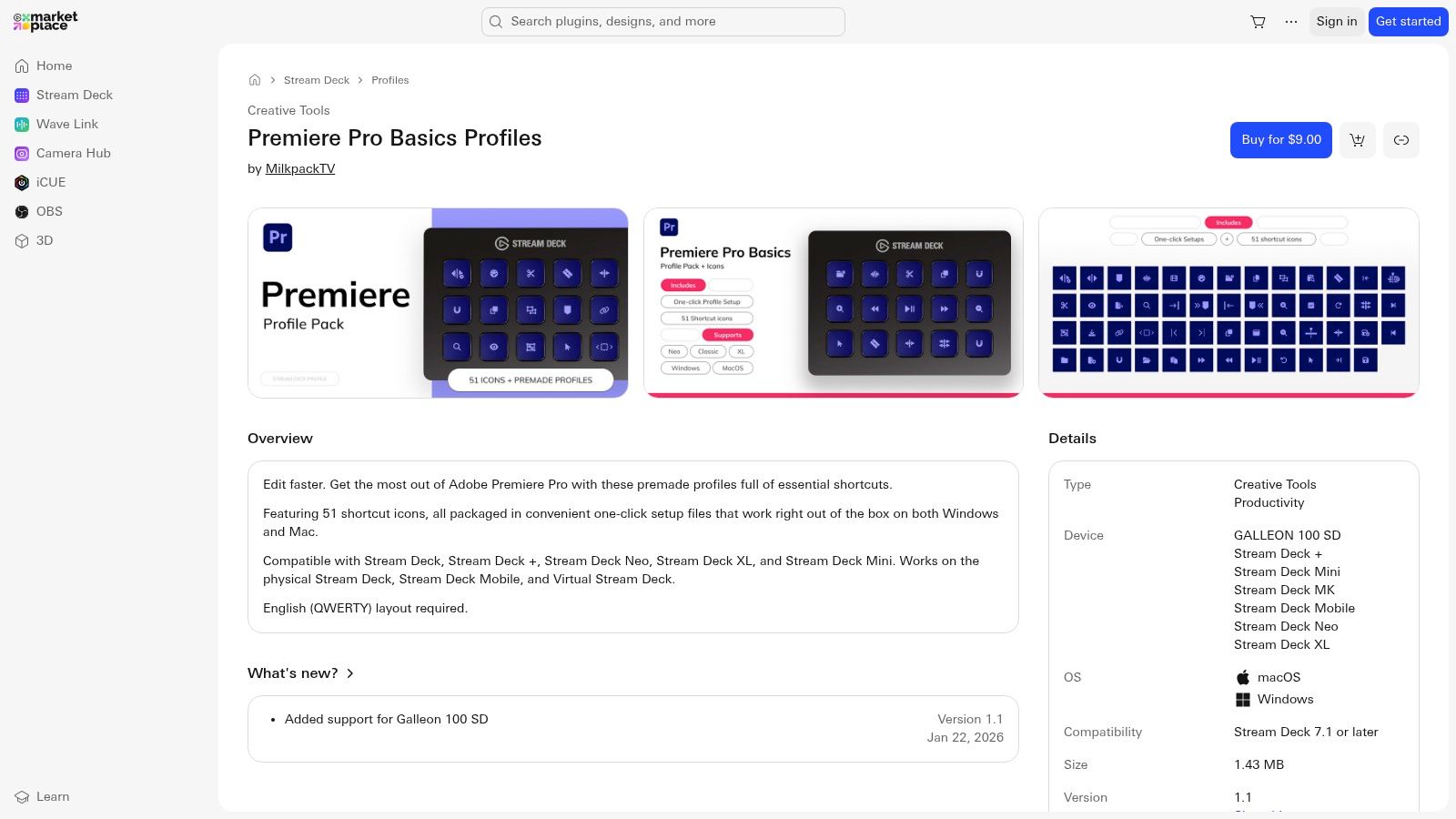
A Stream Deck profile changes shortcut work by putting Premiere Pro actions on labeled buttons. That matters because the editor stops spending mental energy on recall and starts spending it on timing, which is how speed is achieved in a cut. The Premiere Pro Basics profiles on the Elgato Marketplace work on Windows and macOS, and Stream Deck + devices add dial control for repetitive adjustments. The workflow feels direct. You press the button for the command you want instead of stopping to remember a multi-key shortcut.
That makes it a strong training aid for editors who are still building habits. A new assistant editor can keep common Premiere actions in front of them, learn the sequence while they work, and avoid the friction of flipping between the timeline and a shortcut sheet. It also gives a team a shared control layout, which helps when multiple people need to move through the same project without re-learning each other’s setup. If your team is already building repeatable production systems, the internal guide on video marketing for small business fits the same mindset.
The trade-off is hardware dependence. You need Stream Deck hardware, or Stream Deck Mobile, to use the profiles, and profile quality can vary depending on who built it. That makes it less universal than Adobe’s official docs or a keyboard cover. For repetitive tasks, though, it can be very effective.
I’d use Stream Deck profiles in a few specific cases:
- Best for button-based workflow: when one tap beats a key combo.
- Best for training: when visible labels help more than hidden memory.
- Best for teams: when you want the same control layout across users.
It is not the first tool I would buy for someone learning Premiere Pro. It is a strong choice for editors who already know the software well enough to value speed without hunting for commands.
7. KeyCombiner – Shortcut Trainer and Instant Lookup
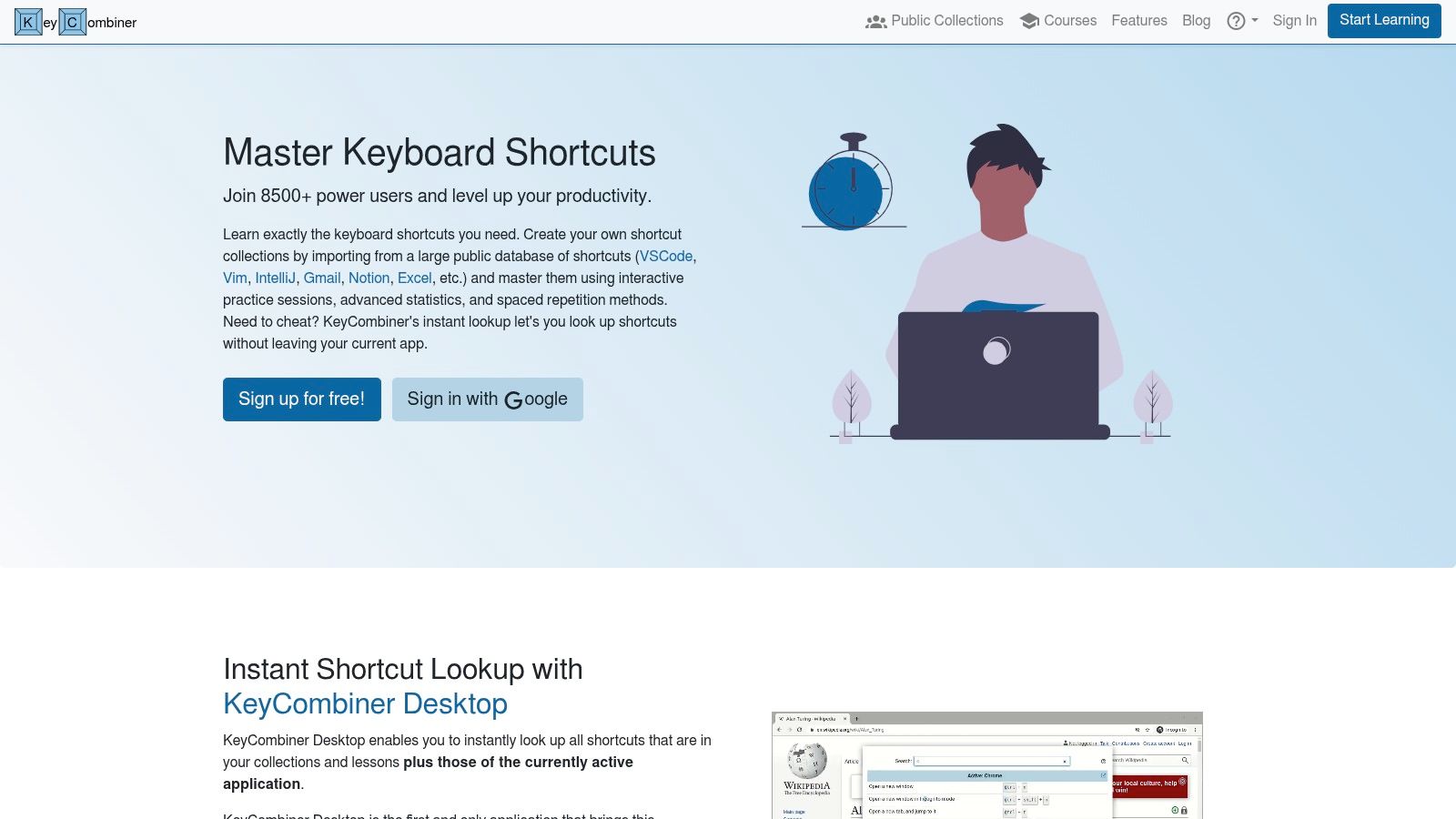
KeyCombiner is the best choice here if the problem isn’t access, it’s memory. It’s built as a learning and lookup tool, so you can drill shortcuts with flashcards, check commands in the desktop app, and pull up app-specific shortcuts fast when your brain blanks mid-edit. That makes it especially useful for editors who know a shortcut set exists but still hesitate when the pressure’s on.
The spaced-repetition angle is the big reason it stands out. Instead of passively reading a list, you’re repeatedly recalling the command set until it sticks. That’s exactly what a shortcut system needs, because speed in Premiere Pro comes from recognition under pressure, not from having the list open in another tab. KeyCombiner also supports sharing collections with a team and exporting them to PDF, CSV, and XLSX, which gives post supervisors a way to standardize a studio shortcut library across multiple editors.
Best use case: train the commands you actually touch every day, then use instant lookup only when you’re handling a rare task or onboarding a new workflow.
The platform is also cross-platform, which matters when your editors split between Windows and macOS. As a complement to Adobe’s official documentation, it fills the gap between “I know where to find this” and “my fingers already know this.” The trade-off is setup. You need to create or import a Premiere collection before the team benefits fully, so it rewards a little organization up front.
For training, it’s probably the smartest resource on this list. For pure reference, Adobe still wins. For muscle memory, KeyCombiner gives you a structured path instead of just another cheat sheet.
Adobe Premiere Pro Keyboard Shortcuts: Premiere Pro Keyboard Shortcuts, 7-Item Comparison
| Item | Implementation complexity | Resource requirements | Expected outcomes | Ideal use cases | Key advantages |
|---|---|---|---|---|---|
| Adobe HelpX – Default Premiere Pro Keyboard Shortcuts (official) | None, web reference | Internet access; browser (free) | Accurate, version‑current list of default shortcuts | Verifying defaults; documentation and reference | Authoritative, up‑to‑date, free |
| Adobe HelpX – Customize, View, and Manage Keyboard Shortcuts (official) | Low, follow step‑by‑step editor guide | Premiere Pro installed; basic knowledge of shortcuts | Custom shortcut sets, conflict resolution, import/export (.kys) | Power users; teams standardizing workflows | Official instructions; visual editor; import/export support |
| Logickeyboard ASTRA2 Backlit Keyboard for Adobe Premiere Pro | Medium, plug‑and‑play hardware setup | Purchase keyboard (higher cost); desk space | Faster visual access; consistent physical layout across stations | Onboarding, shared edit bays, heavy use environments | Durable, backlit, color‑coded labeled keys |
| Editors Keys – Adobe Premiere Keyboard (AB10 Backlit, Wired or Wireless) | Medium, choose wired or wireless setup | Purchase keyboard; possible adapters; moderate cost | Improved recall and speed; flexible device switching | Flexible/multi‑device setups; mobile editors | Wireless multi‑device option; clear legends; backlit |
| KB Covers – Adobe Premiere Pro Keyboard Covers (Mac keyboards and MacBooks) | Very low, place cover on keyboard | Purchase model‑specific silicone cover (low cost) | On‑key reference without changing typing feel or hardware | MacBook/Magic Keyboard users; budget‑conscious setups | Affordable, removable, washable, non‑invasive |
| Elgato Stream Deck – Premiere Pro Basics Profiles (Elgato Marketplace) | Low–Medium, install profiles and map buttons | Stream Deck hardware or Stream Deck Mobile; profile install | Convert multi‑key combos to single taps; faster repetitive tasks | Live production, repetitive workflows, accessibility needs | Single‑tap macros, shareable profiles, dial support |
| KeyCombiner – Shortcut Trainer and Instant Lookup | Low–Medium, use or create collections; train regularly | Web/desktop app; time to create/import sets; optional paid tiers | Better memorization (spaced repetition); fast lookup for active app | Training/onboarding; teams enforcing studio shortcuts | Spaced‑repetition trainer, instant lookup, exportable collections |
From Knowing to Doing Build Your Muscle Memory
Knowing a shortcut exists is one thing. Having it burned into your muscle memory is something else entirely. The best approach is deliberate practice, not shortcut hoarding. Pick one category, maybe timeline navigation or editing cuts, and use only those commands for a week until they stop feeling like commands and start feeling like instinct.
That’s where the mix of tools matters. Adobe HelpX gives you the authoritative map, KeyCombiner helps you drill it, and hardware like Logickeyboard, Editors Keys, KB Covers, or Stream Deck keeps the shortcuts visible in the room while you work. If your team edits across multiple systems, use Adobe’s customization tools to keep the mapping consistent and exportable, then layer in physical aids only where they help. Don’t buy every shortcut tool at once. Buy the one that solves the friction you keep hitting.
And keep the goal simple. Faster editing isn’t about showing off a list of commands, it’s about clearing the path between an idea and the timeline. Once your hands stop hunting for menus, your head stays on the cut, and that’s where the critical work happens.
If you want your video content, website, and search strategy to work together, Mr. Green Marketing, LLC can help you build that system with SEO, web design, video production, and conversion-focused strategy. They start by finding the gaps, then they turn those insights into a practical plan that supports growth. Visit them to get a clearer path from visibility to results.
Leave a Comment
sing in to post your comment or sign-up if you dont have any account.