
How to Generate a Google Review Link: You’ve just finished a busy week, asked satisfied customers for reviews, and sent them a Google link. Then someone tells you the link opens a search page instead of the review form. The customer has to find the business, open the profile, locate Reviews, and figure out where to write. Most won’t bother.
The fix is a direct Google review link. It sends a customer to the review prompt for one specific business, reducing the distance between a positive experience and published feedback. The right link is simple to create, but the wrong profile, a malformed Place ID, or an untested QR code can waste every request you send.
How to Generate a Google Review Link: Table of Contents
- Why a Direct Google Review Link Matters
- Getting Your Link from Google Business Profile
- Using the Place ID Method as a Backup
- Sharing on Mobile and Turning It Into a QR Code
- Where and When to Send the Link
- Testing and Troubleshooting Common Issues
Why a Direct Google Review Link Matters
Consider a café owner in Austin who sends 200 customers a generic Google search link and receives only three reviews in a month. After switching to a direct review URL, the café receives 40 reviews the following month. This illustrative example shows how much the path can affect follow-through, but it is not a performance guarantee. Timing, customer satisfaction, message quality, and follow-up still influence results.
A direct link opens the star-and-comment form for the correct business instead of asking customers to search, identify the profile, and find the review option. That reduction in effort matters because 61.6% of Americans seeking reviews before a decision go to Google first, while 71% of shoppers begin consumer research with Google reviews, according to consumer review behavior research. Customers already use Google to assess businesses. Give them a route that removes unnecessary steps.
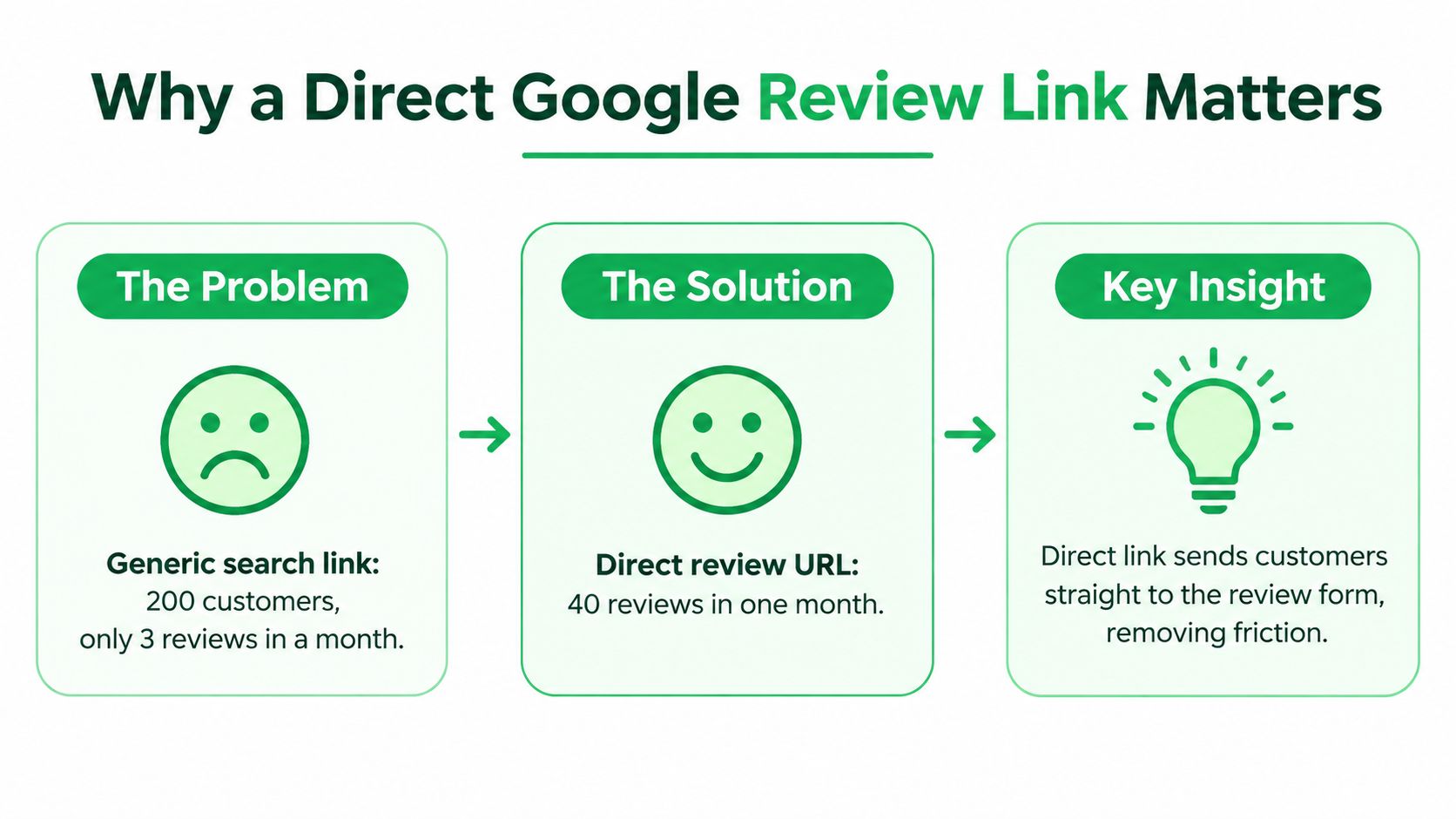
Friction affects follow-through
A review request can fail because it arrives at the wrong moment, opens the wrong page, or requires too much effort. A direct URL makes the intended action clear and removes the search step. It does not replace good service or thoughtful follow-up, but it prevents a technical obstacle from stopping a willing customer.
That distinction matters in local SEO. Reviews strengthen trust and give prospective customers current evidence about a business. The broader review environment is demanding, with 97% of consumers reading online reviews before buying, according to the cited consumer review research. The practical response is to make each request easy to complete and easy to verify.
Practical rule: Send customers to the review form, not your homepage, a general search result, or a profile page they must navigate themselves.
Review collection works best within a broader local SEO lead generation strategy. The link is one part of the process. Your team still needs a clear request, an appropriate follow-up point, and a system for responding to feedback. Before sending it widely, test the destination on desktop and mobile, then scan any QR code with a separate device. A link that works in your dashboard can still fail for customers if it points to the wrong location or opens an incomplete path.
How to Generate a Google Review Link: Getting Your Link from Google Business Profile
The Google Business Profile dashboard is the cleanest starting point because Google generates the review destination for the selected profile. It also provides a QR code from the same area, which is useful when you need both a clickable link and a print-ready route.
Follow the dashboard path
- Sign in: Go to Google Business Profile and sign in with an account that manages the business.
- Choose the profile: If the account manages multiple locations, select the exact location you want customers to review. Don’t assume the profile shown first is the right one.
- Open Customers: From the profile controls, select Customers.
- Open Read Reviews: Choose Read Reviews from the customer options.
- Select Get more reviews: Click the Get more reviews button. Google displays a shareable review link and a QR code in the same panel.
- Copy the link: Use the copy control beside the review URL. Save the copied address in your password manager, marketing workspace, or location-specific campaign file.
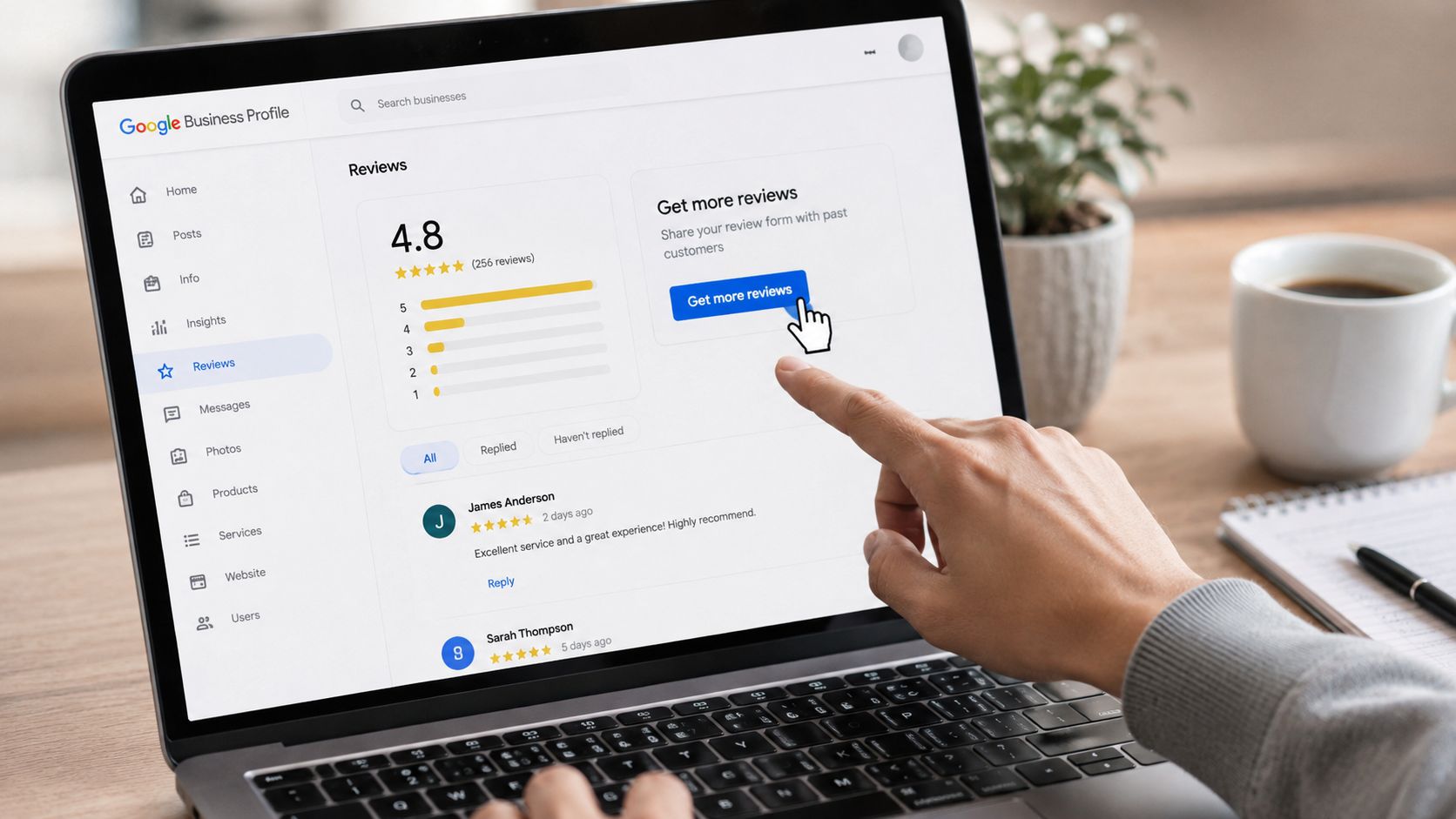
Google’s official Business Profile review instructions confirm that businesses can direct customers to a review link or QR code. The dashboard route is preferable because it avoids manual URL construction and reduces the chance of copying an unrelated profile address.
How to Generate a Google Review Link: Watch for silent profile mistakes
The link belongs to the profile you selected. For a company with several branches, choosing the wrong location is a silent error. The URL may open normally, but the customer will land on the wrong business listing.
Google’s interface can also change over time. Labels may move, and a legacy profile may not display Get more reviews in the same place. If the button is missing, don’t keep clicking through unrelated menus. Use the Place ID fallback described next, then confirm the destination before distributing it through your local search optimization process.
Keep a current copy of the generated link, but don’t treat an old bookmark as permanent proof that everything still works. Recheck the business name, location details, and review prompt before launching a new campaign.
How to Generate a Google Review Link: Using the Place ID Method as a Backup
The Place ID method is the dependable fallback when the dashboard shortcut is unavailable, difficult to locate, or inconvenient for an agency managing several profiles. It creates the same type of direct review destination, but you build the URL by inserting the correct Google Place ID.
Find and insert the correct identifier
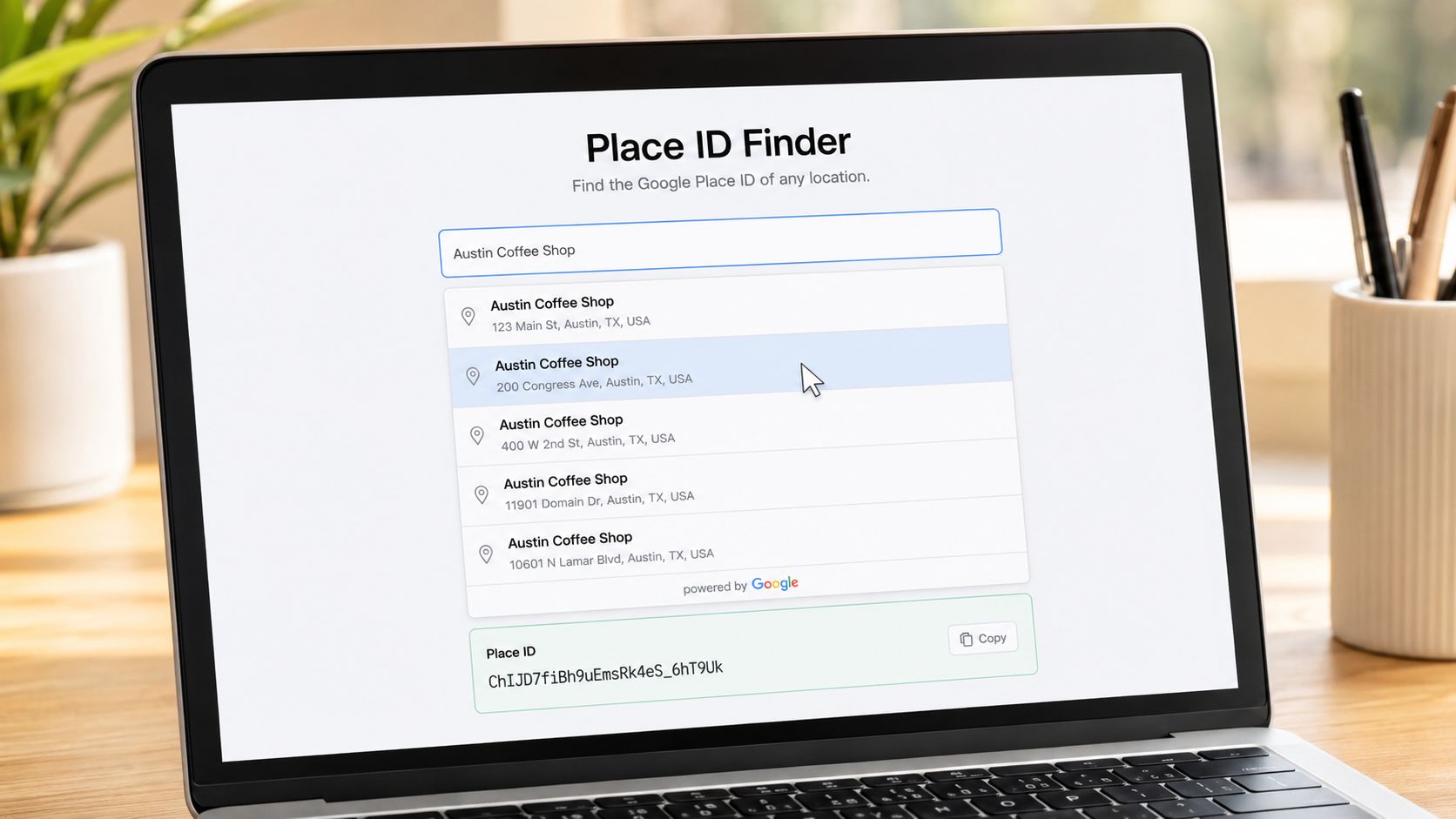
Open Google’s Place ID Finder, then search for the business name or address. Select the exact listing from the results and copy the alphanumeric identifier. Place IDs commonly begin with a ChIJ pattern, but copy the complete string rather than relying on its visible beginning.
Use this template:
`
Replace YOUR_PLACE_ID with the copied value. The finished URL must contain the Place ID directly after placeid=, with no spaces, brackets, quotation marks, or extra characters.
Avoid the three common errors
The first mistake is choosing the wrong result. A chain location across the street or a similarly named company can appear in the finder. Compare the listing name and location details with the verified profile before copying anything.
The second is trailing whitespace. Copying from a browser can add an invisible space at the end of the Place ID, causing the URL to fail or resolve unpredictably. Paste the ID into a plain-text field first, remove surrounding spaces, then insert it into the template.
The third misconception involves service-area businesses. A business without a public storefront can still use a Place ID link because the identifier is tied to the Google profile, not to a customer-facing street address. That makes the method useful for contractors and other mobile operators covered by this local SEO guidance for contractors.
This isn’t a competing destination to the dashboard link. It’s a controllable backup. Once assembled and tested, it can support reusable email templates, agency workflows, and location-specific assets.
How to Generate a Google Review Link: Sharing on Mobile and Turning It Into a QR Code
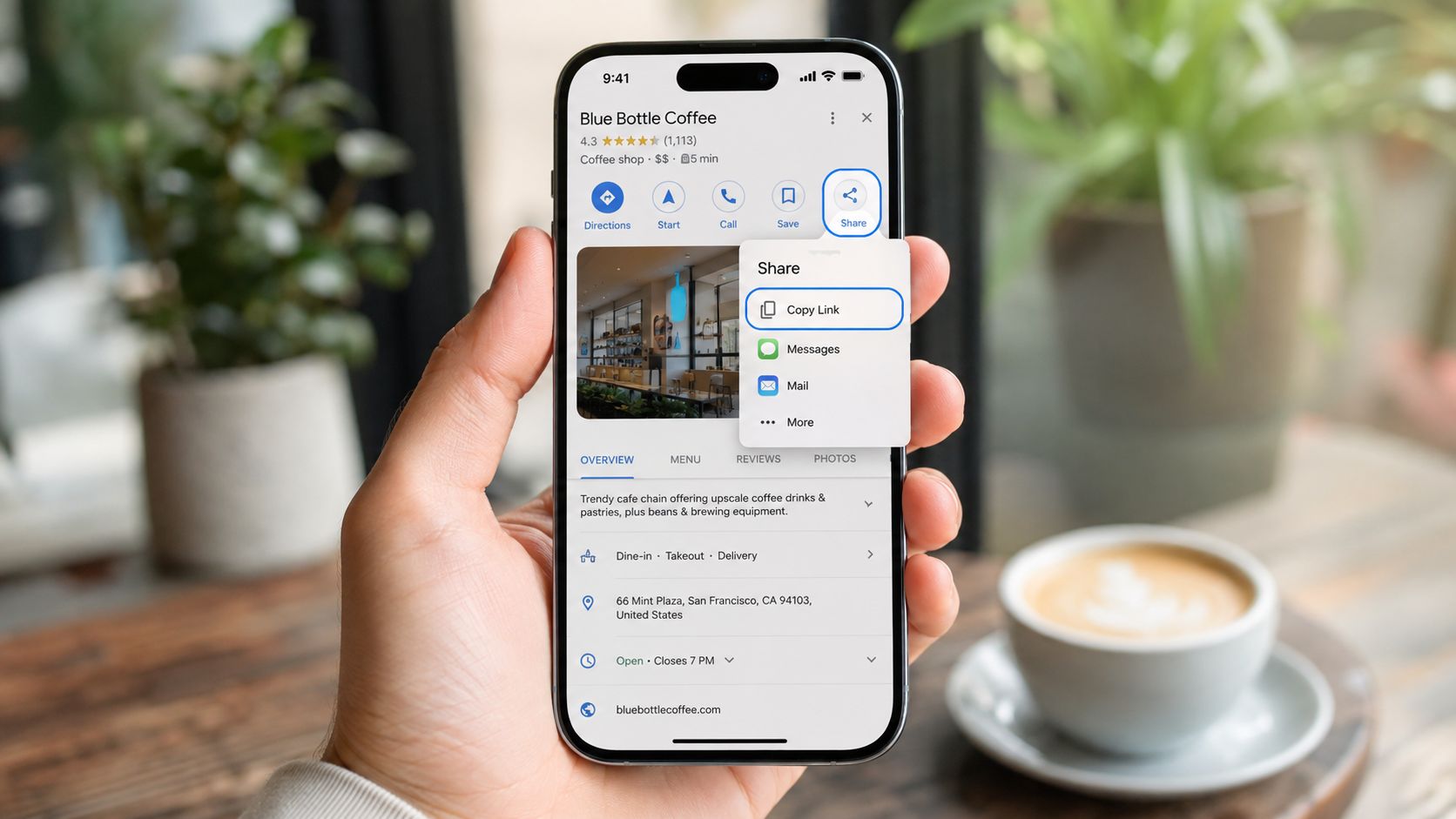
A staff member may be beside a customer when the review request makes sense. Set up and test the mobile flow before relying on it at the counter, during checkout, or after an appointment. Google Maps makes it quick to find and share a listing, but its general share URL may not open the review form directly.
Use Google Maps for mobile sharing
On iOS or Android:
- Open Google Maps and search for the business name and city.
- Tap the correct business name in the results.
- Tap Share on the listing.
- Choose Copy Link or select the messaging app you want to use.
- Check the destination before sending it to a customer.
This process works well when an employee needs to send the listing immediately. For an organized review campaign, use the direct URL from Google Business Profile or the Place ID template. A standard Maps link can open the business profile without taking the customer to the review prompt, so staff should open the copied link and confirm its destination first.
Google’s review request guidance allows businesses to share a Google link or QR code with customers. The practical requirement is simple: convenience does not replace testing. Open the link on a phone that is not signed in to the business account, then confirm that the customer can reach the intended review screen.
How to Generate a Google Review Link: Create the QR code
Use either of these routes:
- Use Google’s built-in QR code: In the profile dashboard, open Customers, select Get more reviews, and download the QR code supplied with the review link.
- Use an external generator: Paste the tested full Google review URL into a tool such as QR Code Monkey or the Bitly QR builder. Avoid shortening the destination until the redirect has been tested on the devices customers use.
For printed materials, request a 300 dpi PNG or a vector SVG so the code stays readable at its final size. Screen-based placements can use a standard 72 dpi image when the code is large enough and has strong contrast.
Place QR codes on counter cards, receipt footers, appointment cards, email signatures, and follow-up SMS messages. Give each placement a clear reason to scan. A generic window sticker is easy to ignore. An offer such as 15% off a next visit can give customers a more immediate reason to act. The promotion must comply with Google’s review policies and cannot depend on receiving a positive review. This QR code marketing strategy shows how to connect the code with a broader customer journey.
Where and When to Send the Link
The right channel depends on customer intent, staff behavior, and how quickly the request follows the experience. There isn’t one universal winner. A restaurant, a home-service company, and an online retailer should not use the same timing or delivery method.
| Channel | Avg. Conversion | Setup Effort | Best For |
|---|---|---|---|
| Desktop email | Higher intent, lower volume | Low to moderate | Service summaries and delivery follow-up |
| SMS | High attention, concise message required | Moderate | Customers who already communicate by text |
| Mobile share | Highest in-the-moment intent | Staff training required | Face-to-face requests after a positive interaction |
| QR code | Passive and low friction | Low | Counters, receipts, cards, and packaging |
| Automated follow-up email | Scales across customers and locations | Moderate to high | Repeatable workflows in Klaviyo, Mailchimp, or GoHighLevel |
Match the channel to the moment
A desktop email works well after a completed service or delivery because it gives the customer context and space to respond. Keep the message short, thank them, explain that the link opens Google’s review form, and include one clear button.
SMS is more immediate, but the message must stay concise and identify the sender. If your team already confirms appointments or sends completion notices by text, adding the review request to that established conversation feels more natural than starting a new thread.
Mobile sharing has the strongest immediate intent because the customer is already present. The trade-off is consistency. Staff need a short, pressure-free script and must know which location profile to use.
Use one primary route and one backup
Restaurants generally benefit from an ask soon after the visit, while service businesses should wait until the job is complete and the customer can judge the result. E-commerce brands can place the request after delivery confirmation, when the product has arrived rather than when the order was merely placed.
QR codes work well when the customer controls the timing, especially on receipts and appointment cards. Automation tools such as Klaviyo, Mailchimp, and GoHighLevel scale the process once the message, trigger, and location mapping are correct.
Don’t spread a small team across every channel at once. Choose one primary route, such as post-service SMS, and one backup, such as a receipt QR code. 89% of consumers are willing to leave a review after a positive experience if asked, and 53% expect a business to respond within 7 days, according to Google Business Profile review statistics. Ask at a sensible moment, then monitor and respond promptly.
How to Generate a Google Review Link: Testing and Troubleshooting Common Issues
Treat link testing as a ritual, not a final glance before printing. A review URL can look correct in a browser and still send mobile users to the wrong listing, a blank Maps page, or a profile without an obvious review action.
Run the three-device check
Open the link on:
- Desktop browser: Confirm the page loads and the correct business appears.
- iPhone Safari: Test the mobile review experience without assuming an app will handle the link correctly.
- Android Chrome: Confirm the same destination works in another mobile environment.
The correct business name and location details should appear before you distribute the link. Tap each star in the rating selector to verify that the form responds, then cancel without submitting. You’re testing the interface, not creating a test review.
Before printing: A QR code is only as reliable as the URL behind it. Test the destination before ordering cards, signage, or packaging.
Fix the usual failures
“Can’t find this place” usually points to a missing or extra character in the Place ID. Copy the identifier directly from the Place ID Finder instead of typing it. Also remove any leading or trailing whitespace.
“Wrong business selected” often occurs when duplicate listings exist or when a chain has nearby locations. Select the verified profile, then address duplicate listings through Google’s profile management process rather than sending customers to an uncertain destination.
“The review form won’t load” on mobile can result from a shortened URL such as Bitly or TinyURL being blocked or mishandled by the device. Replace it with the full Google link and retest in Safari and Chrome.
“The link opens Maps but shows no review button” means the URL may be malformed, or the place may not be claimed properly. Rebuild the URL from the dashboard or Place ID template, then verify that the selected profile is the intended one.
A broken or missing profile can also affect visibility, so review your listing status alongside this guide on why a business may not show up in Google Search. Re-test the link quarterly and whenever the business changes its name, location, or profile structure. Google can change URL behavior, and old links may fail without an obvious warning.
Mr. Green Marketing, LLC helps businesses build and test local SEO workflows, including direct Google review links, QR code campaigns, profile optimization, and follow-up systems. Visit Mr. Green Marketing, LLC to request a free audit and performance report that identifies visibility gaps and practical next steps.
Leave a Comment
sing in to post your comment or sign-up if you dont have any account.