
How to Block Sponsored Ads on Facebook: And you’re probably doing it right now. Scroll, scroll, friend’s update, local event, then a sponsored post for something weirdly specific you mentioned once and never searched for. A few more swipes and your feed starts to feel less like Facebook and more like rented shelf space.
That frustration is reasonable. Facebook is built to blend ads into the feed so they feel native, not interruptive. Sometimes that works. Often it just feels invasive. And if you’re trying to figure out how to block sponsored ads on facebook, the hard truth is this: you usually can’t eliminate every ad for free, but you can reduce a lot of the clutter and make the remaining ads less personal, less repetitive, and less annoying.
The old desktop-only advice isn’t enough anymore either. Mobile is where the primary fight is now, and AI has made sponsored content more slippery than it used to be. So the best approach is layered. Use Facebook’s own controls first. Add external blockers where they truly help. Then adjust for the reality that the app is harder to clean up than the browser version.
One useful side note for business owners reading this from the other side of the screen: ad fatigue isn’t just a user problem. It’s a signal. If people are actively trying to hide or block promotional content, your creative, targeting, and pacing matter more than ever. That’s part of why resources like Quikly’s Shopify pop-up advertising guide are worth reading even outside ecommerce. Different channel, same lesson. Interruptive marketing gets tuned out fast.
How to Block Sponsored Ads on Facebook: Tired of Your Facebook Feed Being One Giant Ad?
The first thing to know is that Facebook doesn’t treat ad blocking as a bug. It treats it as resistance to the core product. That changes everything about what works.
Sponsored posts aren’t just banners slapped onto a page anymore. They sit inside the feed, mimic regular posts, and often share the same visual structure as organic content. That’s why basic ad blockers can feel inconsistent. One day your feed looks clean. The next day, sponsored posts are back like nothing happened.
You don’t need a perfect solution. You need a stack of small controls that make Facebook less noisy.
There’s also a difference between blocking ads and training the feed. Some methods hide what you see. Some methods reduce how much Facebook can target you. Some methods do both, but only partially. If you treat every tool like an on-off switch, you’ll get disappointed fast.
What actually helps
Three categories matter most:
- In-app controls that tell Facebook to use less personal data and show fewer ads from certain advertisers
- Browser-based blockers that strip out sponsored posts and trackers on desktop or mobile web
- Mobile workarounds that matter because the app behaves differently from the browser
If your feed feels especially crowded lately, you’re not imagining it. Facebook constantly tests placements, labels, and formats. That’s the cat-and-mouse game. Users learn to hide and block. Meta adjusts the delivery and presentation.
What doesn’t deserve your hopes
A few things sound good and underdeliver:
- One-click “Facebook ad remover” tools that promise a completely ad-free app experience
- Hiding a single ad once and expecting your feed to transform
- Desktop-only fixes if you mostly use Facebook on your phone
That last point matters more than most guides admit. If your daily habit is the app, then the browser extension you installed on your laptop is only solving a slice of the problem.
How to Block Sponsored Ads on Facebook: Use Facebook’s Own Tools to Tame the Ad Algorithm
Start inside Facebook. Not because it’s perfect, but because it’s the cleanest first move and it changes what data Facebook can use against you.
The main control panel lives in Settings > Account Center > Ad Preferences. That’s where Facebook separates ad controls into the areas that matter most: personalization settings, topic controls, and advertiser-level blocks. If you’re managing business access on the same account, it’s also smart to keep your admin setup clean so settings don’t get lost in account clutter. This guide on how to add manager access to a Facebook page helps with that housekeeping.
Cut off third-party targeting first
This setting does the most heavy lifting.
Facebook lets you disable targeting that comes from ad partners and outside activity. According to Stands’ guide to stopping Facebook ads, turning off third-party data targeting can remove 40-60% of behavioral targeting data, which is a meaningful reduction in how much outside activity shapes what lands in your feed.
That’s not the same as turning ads off. It means Facebook has less external fuel for personalization.
Use this route:
- Go to Settings
- Open Account Center
- Tap Ad Preferences
- Find Ad Settings or the equivalent area for partner-based ad data
- Set the relevant option to Don’t Allow or the least personalized version available
If a setting label has shifted, that’s normal. Facebook renames and relocates controls often.
Practical rule: If you can only do one thing today, disable third-party ad data before you start hiding individual ads.
How to Block Sponsored Ads on Facebook: Use advertiser blocks like a filter, not a fantasy
Facebook also lets you block ads from specific advertisers you’ve seen recently. This works best for brands that keep following you around after one visit, one click, or one abandoned cart.
Go into the Advertisers section and hide the accounts you’ve seen the most. This doesn’t purge all ads from the category, but it can reduce repetition. And repeated exposure is often what makes the feed feel unbearable.
There’s a catch. The same Stands source notes that advertiser blocks can take 24 hours to propagate across Facebook’s ad delivery system. So if you hide a company and still see it later that day, the setting probably hasn’t fully taken effect yet.
Train topics and interactions
The Ad Topics area is more subtle. Think of it as reducing pressure, not removing categories entirely. If you’re tired of seeing certain kinds of promotions, tell Facebook you want to see less.
Then do the manual work in the feed itself:
- Hide sponsored posts you don’t want
- Use “Why am I seeing this ad?” when the reason looks especially creepy
- Repeat the process consistently instead of once in a while
This part feels tedious because it is. But Facebook’s system responds better to repeated signals than to one-off complaints. You’re not flipping a master switch. You’re giving the algorithm a pattern it has to respect, at least temporarily.
How to Block Sponsored Ads on Facebook: A simple way to prioritize your effort
| Control | Best use | What to expect |
|---|---|---|
| Third-party data settings | Reduce creepy personalization | Fewer ads based on off-platform behavior |
| Advertiser blocks | Stop repeat brands | A delay before changes fully show up |
| Ad Topics | Lower category fatigue | Less pressure from recurring themes |
| Hide ad in feed | Train what you don’t want | Better results when repeated consistently |
If you only poke one setting and leave, Facebook usually wins. If you combine all four, your feed gets noticeably calmer.
How to Block Sponsored Ads on Facebook: Deploying External Tools for Serious Ad Blocking
Facebook gives you controls inside the account. External tools are what you use when you want the platform filtered at the browser level instead of merely retrained.
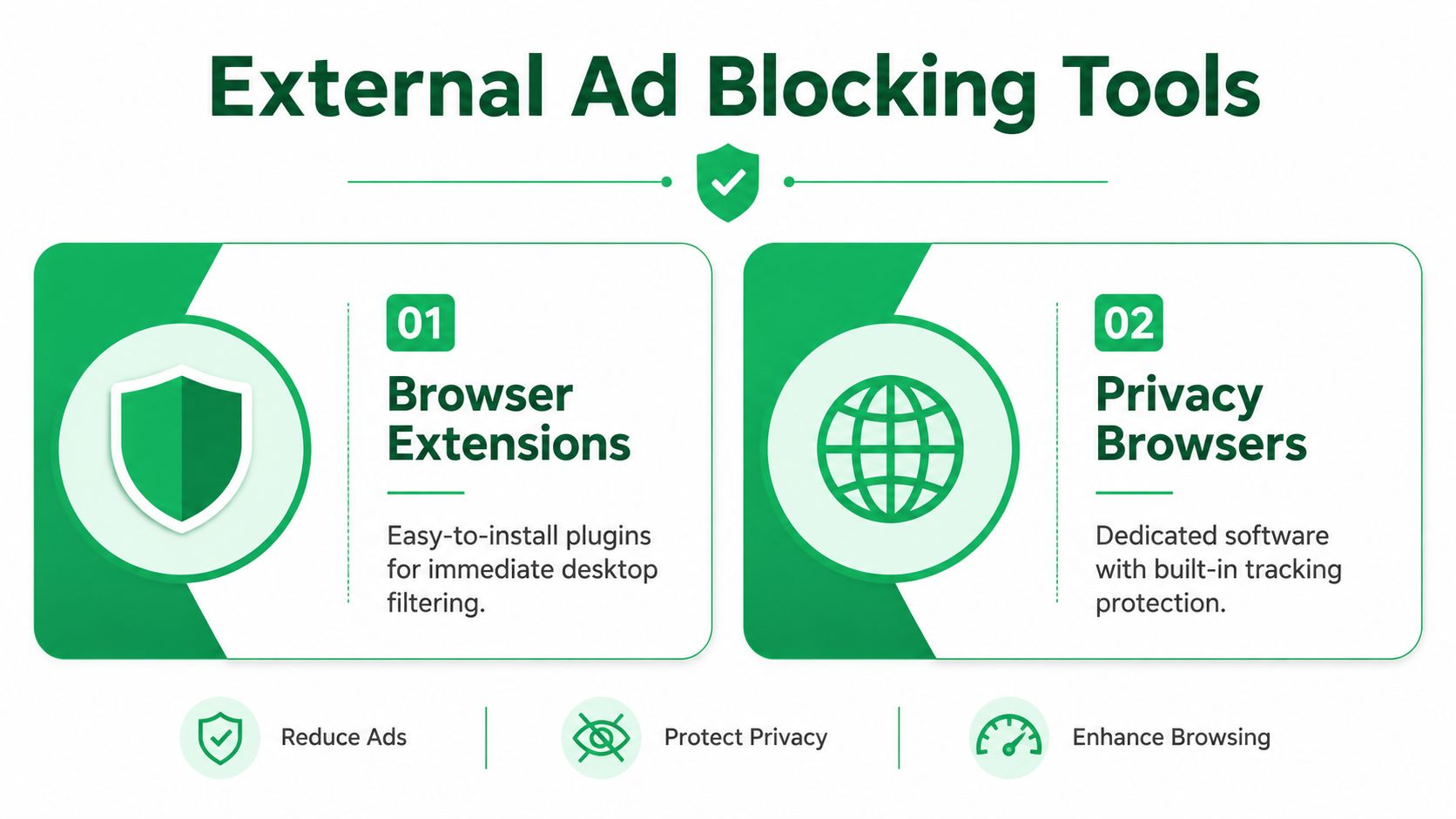
That distinction matters. Internal settings can reduce targeting pressure. External tools try to remove ad units, sponsored labels, trackers, and recommendation modules before they fully render.
The three practical options are browser ad blockers, Facebook-focused feed cleaners, and privacy browsers with blocking built in. They solve slightly different problems.
General blockers versus Facebook-specific tools
General blockers are the best fit for people who want one setup across Facebook, news sites, YouTube, and the rest of the web. Facebook-specific cleaners are narrower. They usually target feed clutter such as sponsored posts, suggested pages, reels modules, and sidebar noise.
Both can work. Both also break.
A broad blocker is usually more resilient because its filter lists are maintained constantly across many sites. The trade-off is precision. It may miss Facebook elements that do not look like traditional ads. A Facebook cleaner can be more aggressive inside the feed, but it depends on Meta keeping the same labels, page structure, and CSS hooks. That is rarely a safe bet for long.
Privacy browsers sit in the middle. They are the easiest option for people who do not want to spend time tuning extensions every few weeks.
The setup I usually recommend
For desktop, the low-maintenance approach is simple:
- Use a privacy browser like Brave for Facebook in the browser
- If you stay on Chrome or Firefox, add a reputable blocker such as uBlock Origin
- Use a Facebook-specific cleaner only if the feed is still noisy after that
That stack works because each tool handles a different layer. The browser blocks a chunk of trackers and ad requests. The extension catches more page elements. The Facebook cleaner handles the leftover feed clutter if Meta changes how sponsored units are presented.
For a quick visual walkthrough, this video gives a solid starting point.
How to Block Sponsored Ads on Facebook: What people get wrong about “serious” ad blocking
The mistake is chasing perfection.
On desktop, you can usually get Facebook noticeably quieter. You can make the feed less commercial and less distracting. You usually cannot make it permanently clean, because Meta tests new placements, changes markup, and blends promotions into formats that look more like ordinary content than classic banner ads.
That is the cat-and-mouse part. Blockers improve, Facebook adjusts, then filter lists catch up.
Where these tools annoy people
Extensions can interfere with logins, comment boxes, embedded videos, Marketplace views, or account prompts. Privacy browsers ask you to change habits, which sounds minor until you realize how many people still open Facebook from the same default browser every day.
There is also a business lesson hiding here. Users do not install blockers because they hate every ad on principle. They install them because the feed feels repetitive, invasive, or too crowded to use comfortably. Marketers should pay attention to that. If your campaign is annoying enough to make someone harden their browser, you are not building demand. You are training avoidance.
Here is the practical trade-off:
| Option | Best for | Main downside |
|---|---|---|
| uBlock Origin or similar blocker | Broad web-wide filtering | Can miss Facebook-specific feed elements |
| Privacy browser like Brave | Low-maintenance setup | Requires changing browsing habits |
| Facebook-specific cleaner | More aggressive feed cleanup | Breaks more often after Facebook UI changes |
If you want the strongest browser-based reduction, external tools are the right move. If you want zero sponsored content everywhere, especially long term, expect to keep adjusting your setup.
How to Block Sponsored Ads on Facebook: The Mobile Challenge and AI-Powered Ads
Most guides still act like Facebook lives in a desktop tab. It doesn’t. The hard fight is on the phone.

According to the YouTube source covering recent changes, 65% of U.S. users engage with Facebook primarily on mobile, and Meta’s dynamic ad slots, introduced in 2025, can bypass traditional ad-hiding actions by 40%, regenerating similar sponsored content within 24 hours in some cases, as noted in this 2025 to 2026 Facebook ad-blocking analysis.
That matches what users keep noticing. You hide an ad, feel good for a minute, and then a suspiciously similar one pops back up. Different creative, same intent.
Why mobile is harder
The Facebook app is more closed than the browser version. Browser extensions don’t get the same visibility inside the app interface, and Meta controls far more of the rendering path there.
That means the old playbook gets weaker on mobile:
- Browser extensions help less if you spend most of your time in the app
- Hide ad still matters, but it’s easier for Meta to refill the slot
- Feed-based cleanup tools often work better in mobile browsers than in the native app
What works better on phones
If mobile is your main device, you have better odds with one of these approaches:
- Use Facebook in a privacy-focused mobile browser
Brave on mobile is the obvious example. If you’re willing to use the web version instead of the app, you usually get more control. - Use a privacy tool with local VPN-style filtering
Some mobile privacy apps route traffic through a local filtering layer on your device. That’s more technical, but it’s one of the few ways to catch ad traffic outside a normal browser context. - Keep the app only for what the browser handles poorly
Marketplace, messaging, or business notifications sometimes push people back into the app. Fine. Just don’t make it your default scrolling environment if ad reduction is the goal.
On mobile, the simplest win is often behavioral. Use the browser for browsing, the app only when you need app-only features.
AI complicates this further because Meta doesn’t have to keep serving the same obvious ad object. It can remix presentation, placement, and timing. So the answer isn’t one magic blocker. It’s reducing the surfaces where Facebook can personalize and reinsert sponsored content quickly.
How to Block Sponsored Ads on Facebook: Understanding the Limitations and Why Some Ads Get Through
You clean up your feed, hide a few sponsored posts, switch tools, and Facebook still slips one into the scroll. That’s normal. It usually means Meta changed how that ad was delivered before your blocker or browser filter caught up.

As noted earlier, Meta makes nearly all of its money from advertising. That creates a permanent incentive to protect ad delivery, especially inside the app where users have the least control. If you approach Facebook ad blocking like a one-time setup, you’ll be frustrated fast. It works more like maintenance.
How to Block Sponsored Ads on Facebook: Why blockers never stay finished
Facebook keeps changing the presentation of sponsored content. Sometimes the label changes. Sometimes the ad unit is rendered in a different way. Sometimes the post looks close enough to organic content that a filter hesitates because blocking too aggressively would also break normal feed items.
AI makes that harder. Meta can test different combinations of copy, images, placement, and timing at scale, which means ads no longer show up in one predictable format. On mobile, that problem gets worse because the native app exposes fewer points where outside tools can intervene.
A few patterns explain why ads still get through:
- Detection rules go stale after Facebook updates how sponsored posts are built
- Native-looking creative survives filters because it resembles ordinary content
- Retargeting keeps pressure on the system because the platform has multiple signals to decide what to show next. If you want context on why the same brands keep following you, this overview of retargeting advertising concepts helps
- Visual variation matters more now because AI can refresh creative quickly, including assets built with AI product photography tools, which gives advertisers more ways to repackage the same offer
From the advertiser side, this is not accidental. If one ad format gets ignored or blocked, the system tests another. That is why “why am I still seeing sponsored posts?” usually has a simple answer. Facebook is adapting faster than static filters.
The realistic goal
The practical target is control, not perfection.
A solid setup reduces how often ads appear, how personalized they feel, and how long the same campaign keeps stalking your feed. That is a better benchmark than trying to eliminate every sponsored post, because complete removal rarely lasts.
| Goal | What it means |
|---|---|
| Reduce volume | Fewer sponsored posts interrupt the feed |
| Reduce relevance | Less reliance on off-platform behavior and inferred interests |
| Reduce repetition | Fewer repeat ads from the same advertiser |
People who use Facebook mostly on phones should expect some leakage. Businesses should pay attention to that fact too. Users block ads because the experience gets repetitive, invasive, or weirdly persistent, not because they object to every promotion on principle.
A good result is a feed that feels usable again, not a promise that Facebook will never serve another ad.
How to Block Sponsored Ads on Facebook: A Note for Businesses Why Your Customers Block You
If you run ads, this isn’t bad news. It’s feedback.
People usually aren’t blocking ads because they hate offers. They’re blocking ads because the experience feels repetitive, intrusive, or oddly personal. When targeting gets sloppy, the creative follows them for too long, or the product image looks generic, users don’t just tune out the campaign. They start distrusting the brand behind it.
That’s why better creative and better restraint matter. If you’re refreshing product visuals, a resource like WearView’s guide to AI product photography tools is useful because stronger visuals can improve relevance without leaning so hard on creepy targeting.
And if you’re investing in paid social, your job isn’t to overpower ad resistance. It’s to earn attention with cleaner messaging, tighter frequency control, and offers that make sense. Businesses that want a broader look at campaign setup, creative strategy, and audience targeting can also review these Facebook advertising services for context on what responsible execution should look like.
The best Facebook ad rarely feels like an interruption. It feels timely, useful, and easy to ignore if it isn’t relevant.
If your business needs help building paid campaigns that respect user behavior instead of fighting it, Mr. Green Marketing, LLC can help. The team handles strategy, creative, PPC, SEO, web design, and performance reporting with a practical, test-driven approach that fits both local businesses and larger brands trying to scale.
Leave a Comment
sing in to post your comment or sign-up if you dont have any account.